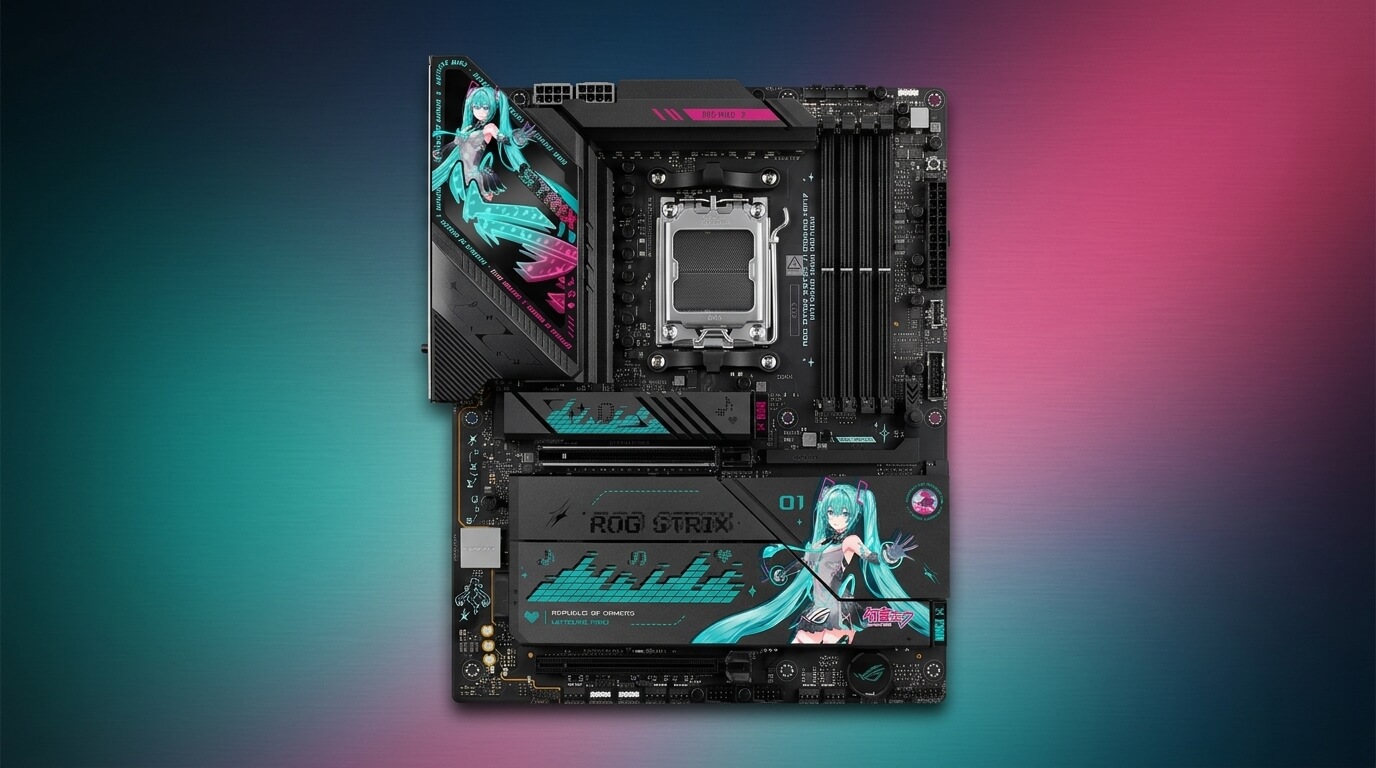
A motherboard is the central circuit board that connects a computer’s processor, memory, storage, and peripheral components. Its lifespan directly affects how long the rest of a computer system remains functional, since a motherboard failure can render other components unusable even when they still work correctly.
Most motherboards last between 15 and 20 years under normal operating conditions, though practical usable lifespan in an active computer system is typically shorter due to compatibility limits with newer processors and memory standards. The physical components on a motherboard, including capacitors, voltage regulators, and circuit traces, degrade gradually through heat exposure, electrical stress, and time.
Several factors influence how long an individual motherboard remains reliable, including build quality, cooling conditions, power supply stability, usage intensity, and environmental factors such as dust and humidity. A motherboard used in a climate-controlled office environment with stable power experiences less stress than one used in a high-performance gaming system that runs at sustained high temperatures.
This article explains average motherboard lifespan by use case, the factors that determine how long a motherboard lasts, the warning signs of motherboard failure, motherboard battery lifespan, methods to extend motherboard life, and how motherboard lifespan compares with other PC components.
Average Motherboard Lifespan
A motherboard lasts an average of 15 to 20 years under normal conditions before component degradation causes functional failure. This estimate applies to the physical hardware itself and does not account for the point at which a motherboard becomes technologically outdated for current processors, memory modules, or expansion cards.
Actual usable lifespan varies by use case. A motherboard in a low-demand home or office system typically remains functional for the full estimated range because it experiences minimal thermal and electrical stress. A motherboard in a gaming or high-performance system often reaches functional or practical end-of-life sooner due to sustained heat output and higher power draw. Component quality also affects this range: motherboards built with solid-state (polymer) capacitors and multi-phase power delivery systems generally outlast boards built with lower-grade components.
Lifespan for Typical Home/Office Use
A motherboard used for typical home or office tasks lasts 15 to 20 years before hardware degradation causes failure. Home and office use includes web browsing, document editing, media playback, and other low-intensity workloads that keep the processor and power delivery system operating well below their thermal and electrical limits.
This reduced stress preserves capacitor life and limits heat-related wear on voltage regulators. A home or office motherboard often becomes obsolete for software or hardware compatibility reasons before it fails physically, since manufacturers stop supporting older chipsets with new processor sockets and memory standards.
Lifespan for Gaming or High-Performance Builds
A motherboard used in a gaming or high-performance build typically lasts 7 to 10 years before component wear or thermal stress leads to failure. Gaming and high-performance workloads keep the CPU, memory, and power delivery circuitry under sustained load, which increases heat output and accelerates component aging compared with light workloads.
Frequent high loads place continuous demand on the voltage regulator module (VRM), which converts and regulates power to the processor. Repeated thermal cycling, where components heat up during use and cool down when idle, contributes to solder joint fatigue and capacitor degradation over time. Overclocking, which increases voltage and clock speed beyond manufacturer defaults, further shortens this range when sustained without adequate cooling.
What Determines How Long a Motherboard Lasts
Motherboard lifespan depends on five primary factors: build quality and component grade, heat and cooling, power supply quality, usage intensity, and dust or environmental exposure. Each factor affects the rate at which internal components degrade, and their combined effect determines whether a motherboard reaches the higher or lower end of its expected lifespan range.
These factors interact with one another. A high-quality motherboard exposed to poor cooling and unstable power still degrades faster than expected, while a mid-range motherboard maintained under stable temperature and clean power conditions can exceed its typical lifespan.
Build Quality and Component Grade
Build quality determines a motherboard’s baseline durability, with higher-grade capacitors, VRM designs, and PCB (printed circuit board) layers extending usable life. Motherboards manufactured with solid-state or polymer capacitors resist heat-related swelling and leakage better than boards using older electrolytic capacitors.
A multi-phase VRM distributes electrical load across multiple power stages, which reduces heat concentration and component stress compared with a single-phase or low-phase design. PCB layer count also affects durability: boards with more layers typically provide better signal integrity and structural stability under thermal expansion and contraction.
Heat and Cooling
Heat is a primary cause of motherboard component degradation, since elevated temperatures accelerate capacitor wear and solder joint fatigue. Motherboards operating in poorly ventilated cases or without adequate airflow experience higher average temperatures around the VRM and chipset, both of which generate heat during operation.
Sustained heat exposure causes electrolytic capacitors to dry out faster, reducing their ability to filter and stabilize voltage. Adequate case airflow, heatsinks on VRM components, and appropriate case fan placement reduce these effects and support the motherboard’s full expected lifespan.
Power Supply Quality and Surges
An unstable or low-quality power supply shortens motherboard lifespan by delivering inconsistent voltage that stresses the board’s power delivery circuitry. Voltage spikes, drops, and electrical noise from an unreliable power supply unit (PSU) place additional strain on capacitors and voltage regulators designed for stable input.
A power surge, a brief spike in voltage above normal levels, can damage motherboard components immediately or cause cumulative degradation over repeated occurrences. Power supplies without adequate voltage regulation or surge protection increase the frequency of these events, while a quality PSU with stable output reduces electrical stress on the motherboard over its service life.
Usage Intensity and Overclocking
Usage intensity affects motherboard lifespan because sustained high loads increase the heat and electrical stress placed on power delivery components. A motherboard running near its rated power capacity for extended periods experiences faster component wear than one operating at moderate, intermittent loads.
Overclocking increases processor voltage and clock speed above manufacturer default settings, which raises power draw through the VRM and increases heat output. Sustained overclocking without corresponding improvements in cooling and power delivery accelerates capacitor and VRM degradation, reducing the motherboard’s effective lifespan.
Dust and Environmental Conditions
Dust accumulation reduces motherboard lifespan by insulating heat-generating components and restricting airflow across heatsinks and fans. A layer of dust on the VRM heatsink or chipset cooler reduces its ability to dissipate heat, which raises operating temperatures and accelerates the thermal degradation described in earlier sections.
Humidity and temperature extremes in the surrounding environment also affect component longevity. High humidity increases the risk of corrosion on circuit traces and connector pins, while operating a system in an environment with frequent temperature swings increases thermal cycling stress on solder joints.
Signs Your Motherboard Is Failing
A failing motherboard shows four primary warning signs: random shutdowns or freezes, failure to POST or boot, port and peripheral failures, and visible physical damage such as bulging capacitors or a burning smell. These symptoms indicate that one or more motherboard components, such as capacitors, VRM circuitry, or chipset connections, are no longer functioning within normal parameters.
Some symptoms overlap with other hardware issues, including a failing power supply or faulty memory module, so confirming a motherboard-specific cause typically requires testing components individually or observing symptoms that persist across different configurations.
Random Shutdowns, Freezes, or Reboots
Random shutdowns, freezes, or reboots indicate a failing motherboard when the power delivery system can no longer supply stable voltage to the processor and other components. These interruptions often occur under load, when power demand increases and a degraded VRM or capacitor cannot maintain consistent output.
This symptom can also result from an unrelated power supply fault, so isolating the motherboard as the cause typically involves testing the system with a known-functional PSU or monitoring voltage stability with diagnostic software.
Failure to POST or Boot
Failure to POST (Power-On Self-Test) or boot indicates that the motherboard cannot complete its initial hardware check, which prevents the operating system from loading. A failed POST is often accompanied by a lack of display output, error beep codes from the motherboard’s onboard speaker, or diagnostic LED indicators showing a specific component fault.
This symptom can result from motherboard chipset failure, damaged CPU socket pins, or a corrupted BIOS (Basic Input/Output System), the firmware that initializes hardware before the operating system starts. Reseating components and resetting the BIOS through the CMOS jumper can rule out configuration issues before concluding the motherboard itself has failed.
Port, USB, or Peripheral Failures
Port, USB, or peripheral failures occur when the motherboard’s I/O (input/output) controller or associated circuitry degrades, preventing connected devices from being recognized or powered correctly. A motherboard experiencing this type of failure may show inconsistent recognition of USB devices, non-functional audio jacks, or unresponsive SATA (Serial ATA) ports for storage drives.
Because individual ports can fail independently of the rest of the board, this symptom sometimes affects only specific connectors while the system otherwise continues operating normally.
Physical Signs (Bulging Capacitors, Burning Smell)
Bulging capacitors and a burning smell are direct physical indicators of motherboard failure caused by internal component breakdown. A bulging capacitor shows a swollen or domed top, a result of internal pressure building up as the capacitor’s electrolyte breaks down under heat or age.
A burning smell, often accompanied by visible discoloration near the VRM or chipset area, indicates that a component has overheated or short-circuited. Either sign requires immediate shutdown of the system, since continued operation risks further damage to the motherboard or connected components.
How Long Does a Motherboard Battery Last
A motherboard’s CMOS (Complementary Metal-Oxide-Semiconductor) battery typically lasts 3 to 5 years before it requires replacement. This battery, usually a CR2032 coin cell, supplies continuous low-level power to retain BIOS settings, system date, and time when the computer is powered off.
Battery lifespan depends on how frequently the system is powered on, since a computer that remains plugged in and used regularly draws less continuous power from the CMOS battery than a system left unplugged or unused for extended periods. Battery quality and ambient temperature also affect this range, with consistently high temperatures shortening battery life.
Signs Your CMOS Battery Is Dying
A dying CMOS battery shows itself through an incorrect system clock, lost BIOS settings after shutdown, or a “CMOS checksum error” message during startup. When the battery can no longer maintain sufficient voltage, the motherboard loses its saved date, time, and custom BIOS configuration each time the system powers off.
This symptom differs from other motherboard failures because it does not typically prevent the system from booting; the computer usually starts normally but requires the user to reset the clock or reconfigure BIOS settings after each power cycle.
How to Replace a Motherboard Battery
To replace a motherboard battery, power off the computer, disconnect it from any power source, and locate the coin-cell battery on the motherboard, typically near the PCIe (Peripheral Component Interconnect Express) slots or SATA connectors. Ground yourself by touching an unpainted metal part of the case to prevent static discharge before handling internal components.
Gently press the small retaining clip beside the battery to release it, then remove the old battery and insert a new CR2032 battery with the positive side facing up, matching the original orientation. After replacement, reconnect power and boot the system, then enter the BIOS setup to confirm the correct date and time.
How to Extend Your Motherboard’s Lifespan
Motherboard lifespan can be extended through four primary methods: improving airflow and cooling, using surge protection, cleaning dust regularly, and avoiding sustained overclocking stress. These methods directly address the degradation factors described earlier, reducing heat exposure, electrical stress, and contamination that shorten component life.
Consistent application of these practices over the system’s operating life has a cumulative effect, since component wear from heat and electrical stress compounds over time rather than occurring as a single event.
Improve Airflow and Cooling
Improving airflow and cooling extends motherboard lifespan by keeping capacitor, VRM, and chipset temperatures within their designed operating range. Adequate case ventilation, achieved through balanced intake and exhaust fan placement, reduces the buildup of heat around power delivery components during sustained use.
Additional heatsinks or improved thermal paste application on the VRM further reduce localized heat concentration in systems with high power draw, such as gaming or overclocked builds.
Use Surge Protection
Using surge protection extends motherboard lifespan by preventing voltage spikes from reaching and damaging the board’s power delivery circuitry. A surge protector or an uninterruptible power supply (UPS) absorbs or regulates sudden increases in voltage caused by power grid fluctuations or electrical storms before that voltage reaches the computer.
Repeated exposure to smaller, undetected surges causes cumulative stress on capacitors and voltage regulators, so consistent surge protection reduces long-term degradation even when individual surge events are minor.
Clean Dust Regularly
Cleaning dust regularly extends motherboard lifespan by maintaining airflow across heatsinks and preventing dust-related heat insulation on sensitive components. Compressed air, applied at regular intervals such as every three to six months depending on the operating environment, removes dust buildup from the VRM heatsink, chipset cooler, and case fans.
Reduced dust accumulation keeps component temperatures closer to the levels achieved when the system was new, which limits the accelerated thermal degradation described under environmental factors.
Avoid Sustained Overclocking Stress
Avoiding sustained overclocking stress extends motherboard lifespan by limiting the elevated voltage and heat output that accelerate VRM and capacitor wear. Reducing overclocking settings to levels supported by the motherboard’s cooling capacity, or reserving overclocked performance for short, monitored sessions rather than continuous operation, reduces cumulative thermal stress.
Pairing any sustained overclocking with adequate VRM cooling, such as additional heatsinks or improved case airflow, offsets some of this stress but does not eliminate the added wear compared with running the system at stock settings.
When to Replace vs. Keep Using Your Motherboard
A motherboard should be replaced when it shows recurring hardware failure symptoms, such as random shutdowns, failed POST attempts, or physical component damage, that persist after ruling out other hardware causes. A motherboard can typically continue in use when it operates without these symptoms and still supports the processor, memory, and expansion cards required for current tasks.
Compatibility limitations often factor into this decision independently of physical condition. A functioning motherboard may still need replacement if it cannot support a newer processor generation, higher memory speeds, or expansion cards required for an upgrade, since chipset and socket compatibility are fixed at the time of manufacture. Conversely, a motherboard exhibiting isolated, non-recurring issues, such as a single failed port, can sometimes remain in service if the affected function is not essential to the system’s use.
Motherboard Lifespan vs. Other PC Components
A motherboard’s typical lifespan of 15 to 20 years generally exceeds that of components with moving parts or intensive write cycles, such as hard disk drives (3 to 5 years) and solid-state drives (5 to 10 years depending on usage), but falls within a similar range to the computer case and power supply unit when the PSU is of high quality. Components with mechanical parts or high electrical cycling, such as cooling fans and storage drives, generally wear out faster than the motherboard itself under comparable usage conditions.
Processors and memory modules, which contain no moving parts and experience lower cumulative electrical stress than the motherboard’s VRM, often match or exceed motherboard lifespan when operated within rated specifications. In practice, a computer system’s overall usable life is frequently determined by whichever component reaches functional or compatibility-based obsolescence first, rather than by any single component’s absolute physical lifespan.
High-performance gaming PCs built for gamers, creators, and competitors.
More From The Journal
Motherboard: Definition, Function, Sizes, Components
Learn what a motherboard is, what it does, how form factors differ, and which core parts like sockets, chipsets, VRMs, slots, ports, and headers matter most.
How to Choose a Motherboard: A Complete Buying Guide
Learn how to choose a motherboard by comparing socket compatibility, chipset features, RAM support, PCIe slots, storage options, rear I/O, and power delivery.